SEO reporting
Google Search Console reporting for multiple websites
Managing several domains should not mean rebuilding the same spreadsheet every month. A useful multi-site SEO report shows which websites changed, how much data supports the change and where to investigate next.
What you will learn
- Compare equivalent periods and dimensions before interpreting a trend.
- Calculate combined CTR from total clicks and impressions, rather than averaging percentages.
- Keep overlapping properties and different search engines separate.
Start with a reporting question, not a bigger chart
An agency reviewing ten client websites needs a different report from a brand comparing its country domains. Write down the decision first: which domain needs attention, which pages lost visibility, or which market is growing? Use a separate project for each client when access must remain separate.
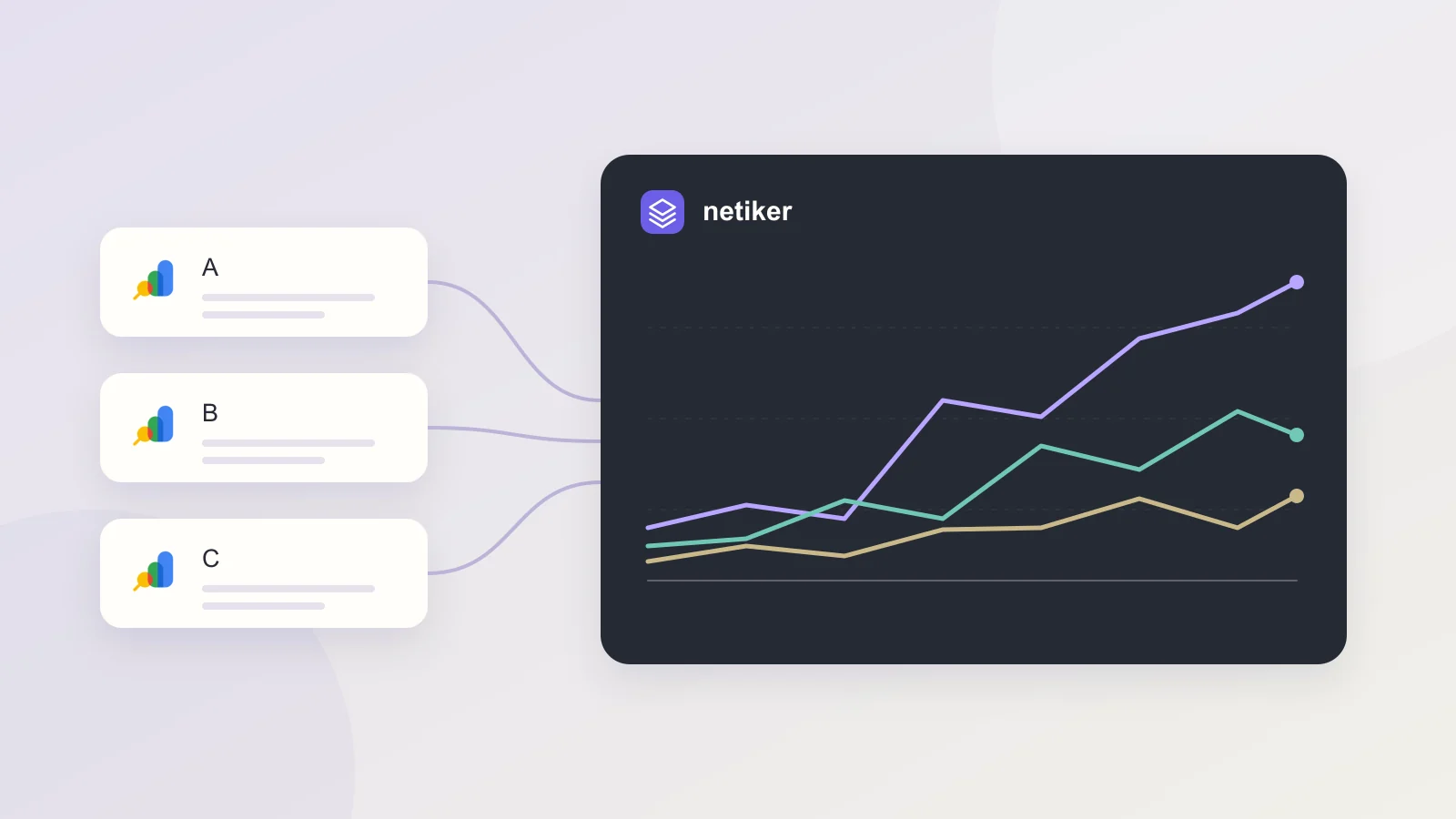
For a portfolio overview, put clicks and impressions on a common date axis and give each domain its own series. A group total is useful only after checking that the properties do not cover the same traffic. A domain property and its URL-prefix property can overlap; adding them can count the same activity twice.
Choose SEO metrics that retain their meaning
Clicks describe visits from search results, while impressions describe visibility. Neither is the same as GA4 sessions or Ahrefs estimated traffic. Keep the source next to the metric so that a familiar label does not imply an equivalent measurement.
Suppose website A has 10 clicks from 100 impressions and website B has 10 clicks from 1,000 impressions. Their CTRs are 10% and 1%, but the combined CTR is 20 ÷ 1,100 = 1.82%, not 5.5%. This is an illustrative calculation, not customer data.
| Metric | Multi-site treatment |
|---|---|
| Clicks and impressions | Sum only compatible, non-overlapping data. |
| CTR | Divide the sum of clicks by the sum of impressions. |
| Average position | Weight by impressions only across compatible aggregation levels. |
| Missing day | Check availability before treating a gap as zero. |
Make date coverage visible
Compare equal-length windows and mark incomplete periods. The first 19 days of a month are not directly comparable with a full previous month. Daily or weekly views can expose a change hidden by a monthly total; check the same weekdays when weekly patterns matter.
Search Console API results can omit dates with no data and are not guaranteed to include every detail row. A query-level table may therefore tell a different story from a property total. Preserve the chosen dimension, filters and reporting coverage instead of presenting every export as a complete census.
Build the workflow in Netiker
Connect Google Search Console through OAuth, select the properties you manage and let their configured synchronizations populate reports. In Free, GSC occupies one integration slot even when you add several properties. Import limits and refresh quotas still apply; unlimited properties does not mean unlimited API work.
- Open the saved data and check the domain, reporting window and last synchronization.
- Create a comparison with one series per website, then save the report.
- Use a dashboard for the overview and a page or query report for investigation.
- Share selected reports through a project, or export a filtered CSV for another workflow.
Investigate a weaker domain without changing everything
Suppose two websites are stable while a third loses clicks. Start with the affected domain rather than rewriting content across the group. First confirm that the same dates are present and synchronization completed. Then establish whether a few pages explain the decline or whether it is distributed across the site.
Explore devices, countries or queries only if those dimensions exist in the stored report. A report grouped by day cannot be turned retrospectively into a complete query report. A different question may require a separate import with the relevant dimension.
This is an investigation plan, not evidence of a particular ranking loss or its cause.
Make the monthly handoff easy to review
A useful handoff contains a short summary, a comparison chart and a table that someone else can check. State both reporting and comparison dates beside the results. If the current month is incomplete, add an equivalent shorter window or a daily rate and explain the denominator.
- Which domain and search type does the report cover?
- Which figures are measured, estimated or incomplete?
- Which pages explain the largest observed change?
- What should be checked before the next review?
Turn the report into a small action list
Rising impressions with stable clicks can justify reviewing page relevance and search snippets. Falling clicks concentrated in one page deserve a different investigation from a site-wide decline. These are starting points, not proof of a cause: seasonality, query mix and small samples can all change the picture.
Record the affected domain, page or query, the comparison period and your next check. That makes the report useful at the next review instead of leaving a dashboard full of unexplained percentage changes.
Questions and answers
Can several GSC properties use one Netiker integration?
Yes. The GSC integration slot is distinct from the number of selected properties. Each import still uses the applicable request and reporting limits.
Can I add Bing clicks to the same Google metric?
Show Bing and Google as separate series first. If you create an organic-search total, label both engines explicitly and check their definitions and coverage.
References
Reviewed: